
GetThru <> VAN Integration
GetThru's VAN Integration is a two-way sync that lets you import lists from VAN and export contact data and campaign results to VAN. To connect VAN with ThruText or ThruTalk, you'll first need to request and generate a VAN API key.
This guide will walk you through obtaining an API key from VAN.
For more information about VAN and related setup guides, check out our guide: GetThru VAN Integration Overview.
TABLE OF CONTENTS
Before You Begin
You must be an administrative user configured in VAN's Support Request System to request and generate API keys.
If you don't have access to API Integrations, contact your VAN administrator or the person who manages your VAN account for assistance.
Request a VAN API Key
To request an API key, open API Integrations in VAN and click Request an API Key.
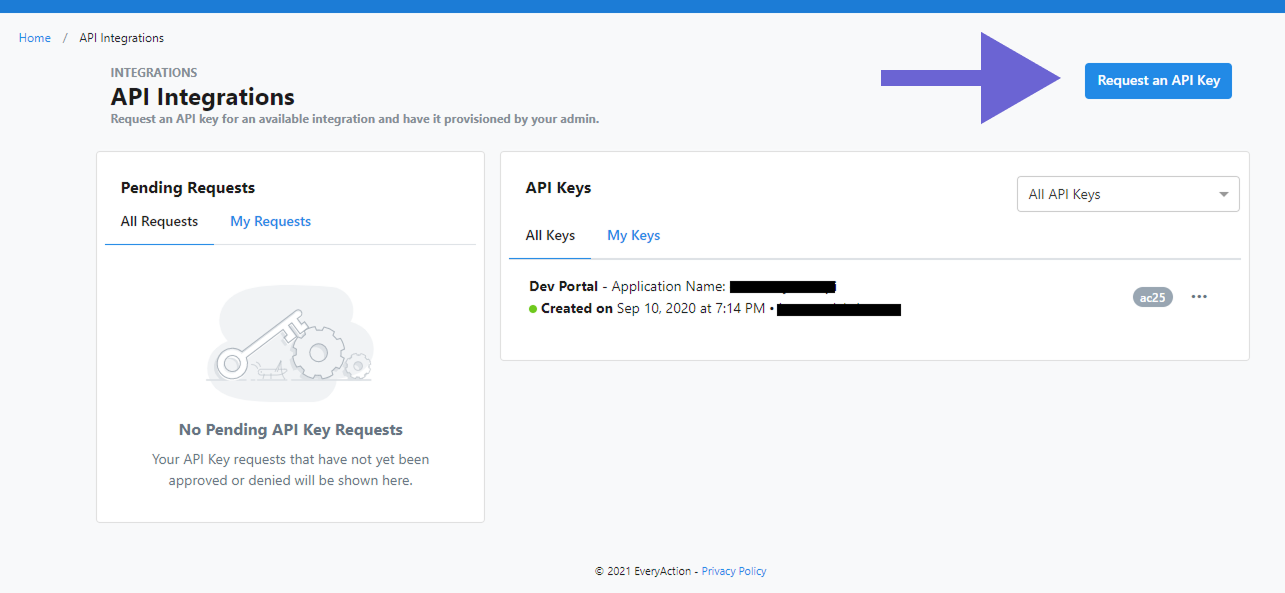
VAN has a helpful guide you can access if you're logged in to VAN: How to: Request and approve API keys.
After you click Request an API key, you'll set the Integration and who the Request will be sent to.
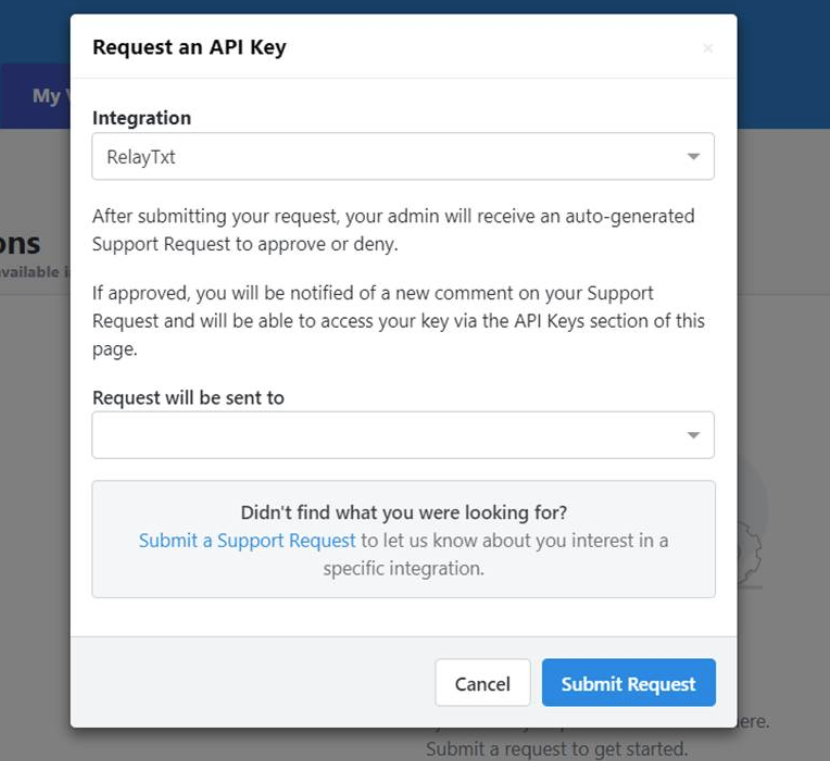
For Integration, select one of the following:
- ThruText
- RelayTxt
- ThruTalk
- RelayDial
Select the one that corresponds with the product you want to integrate with. You'll also be asked to select the administrator to whom the request will be sent. Once you Submit Request, a VAN support ticket will be opened where your VAN administrator can authorize the request.
Once your key request has been authorized, the integration or key request will appear in the API Keys section. Click Generate API Key to securely generate a key:
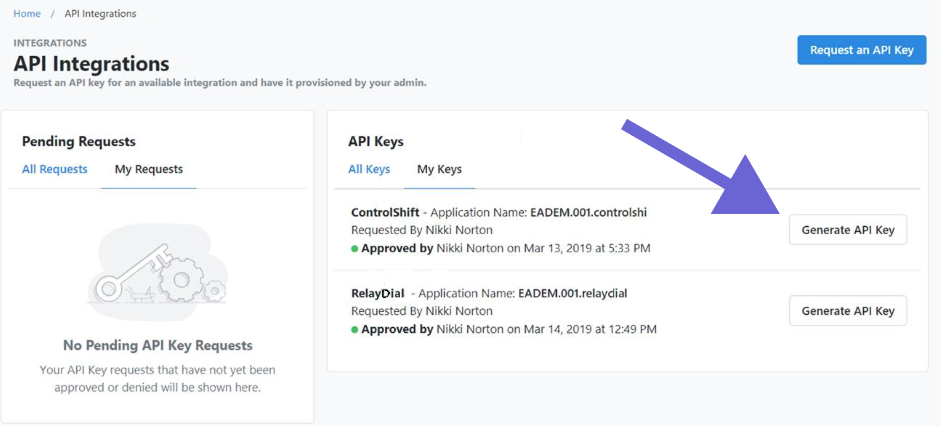
Once a key has been generated, it will be listed under the API Keys section, and you will now see an action menu (...) with an option to regenerate.
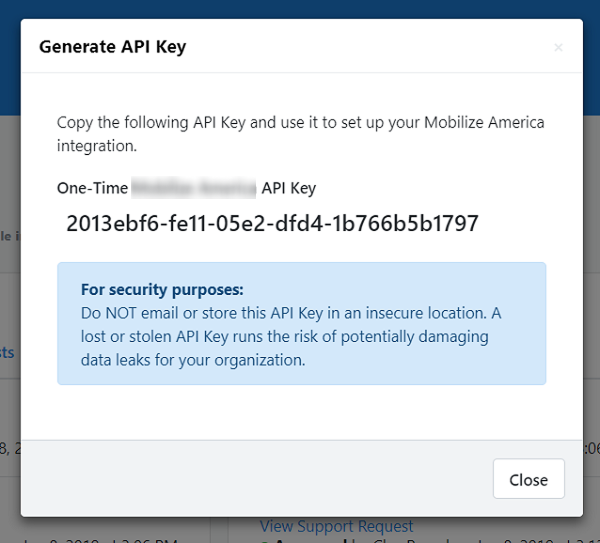
NOTE - EveryAction/NGP8 users may need separate API keys for MyVoters and their EveryAction/NGP8 account. Check with your VAN administrator to confirm which keys your committee requires.
Important: If you regenerate your API key, it will break any existing integration with your GetThru account.
Next Up
Now that you have your API key, you can enter it in GetThru. Read this guide next for a step-by-step explanation: VAN Integration Setup - Step 2: Entering the API Key in GetThru.