
Syncing ThruText Campaigns with VAN
You can integrate your ThruText account with your VAN instance to bring in key organizing data, including Survey Questions, Activist Codes, Canvass Results, and Events. This setup allows you to align your texting campaigns with existing targeting and tracking strategies in VAN. Once connected, survey responses and contact history will sync automatically, so you can avoid manual uploads and ensure your VAN committee stays up-to-date.
This guide walks you through:
- What data types can sync
- How to set up and map your groups
- How to import survey questions, canvass results, and events
- How responses sync back to VAN
TABLE OF CONTENTS
- Before Getting Started
- What Can Sync to VAN?
- Upload Groups with VAN IDs
- Troubleshooting VAN Sync Issues
Before Getting Started
Before you begin, make sure you’ve completed the following:
- Set Up Your VAN Integration: Get your API key and enter it on the Integrations page. See our guide GetThru VAN Integration Overview for full details.
- Create a VAN Group: Import your contact list directly from VAN to create a group. Check the step-by-step process here: Creating a Group from a VAN Imported List.
After that step. you can begin following the steps listed below.
What Can Sync to VAN?
Once your group is uploaded with VAN IDs, you can import Survey Questions, Activist Codes, Events, and Canvass Results directly from VAN into your campaigns. The available syncing options include the following:
Data Type | Committee Side |
Survey Questions MyVoter or MyCampaign ID | MyVoter or MyCampaign ID |
| Activist Codes | MyVoter or MyCampaign ID |
| Events | MyCampaign ID only |
Canvass Results | MyVoter ID only |
Freeform surveys cannot sync back to VAN. Information typed in by message senders will need to be bulk uploaded to your committee as notes.
VAN contact history will be updated when contacts are first texted within the campaign, if the "Texted" status is enabled, and when survey responses are logged, even if texted status is disabled. Review our guide ThruText VAN Syncing Contact History, section How the Texted Sync Works for more information.
Upload Groups with VAN IDs
To sync ThruText data to VAN, group uploads must include either the custom field van_id (MyVoter) or van_campaign_id (MyCampaign). Review our guide, Custom Fields - Personalization and Integrations - Section: Custom Fields for Integrations, for more information on this feature.
- If you upload a group from an external list, only one type of VAN ID can be mapped. It will be automatically mapped during the group upload, as long as the applicable VAN committee custom field is within the account.
- To sync with both MyVoters and MyCampaign, upload the group manually and map both ID types. Please review our guide Creating a Group from a VAN Imported List for more details on that process.
- If IDs were missed during upload, you can manually match them to bulk upload into VAN using a vlookup. Please review our guide Mapping to both MyVoter and MyCampaign in a Campaign for step-by-step details.
Once mapped correctly, ThruText will associate survey responses with the correct VAN contact record.
Import VAN Survey Questions into ThruText
When building your campaign, you can import existing VAN survey questions at the Survey Questions step or add the questions after launch
Choosing an Import Option
- For details on adding Survey Questions during campaign creation, please review our Launching a ThruText Campaign guide - Section: Survey Questions.
- For details on adding Survey Questions within an active campaign, please check out our ThruText Campaign Summary Page guide - Section: Surveys Tab.
Once you are on the Launching or Campaign Summary Surveys page, please review the following details for adding your VAN Survey Questions.
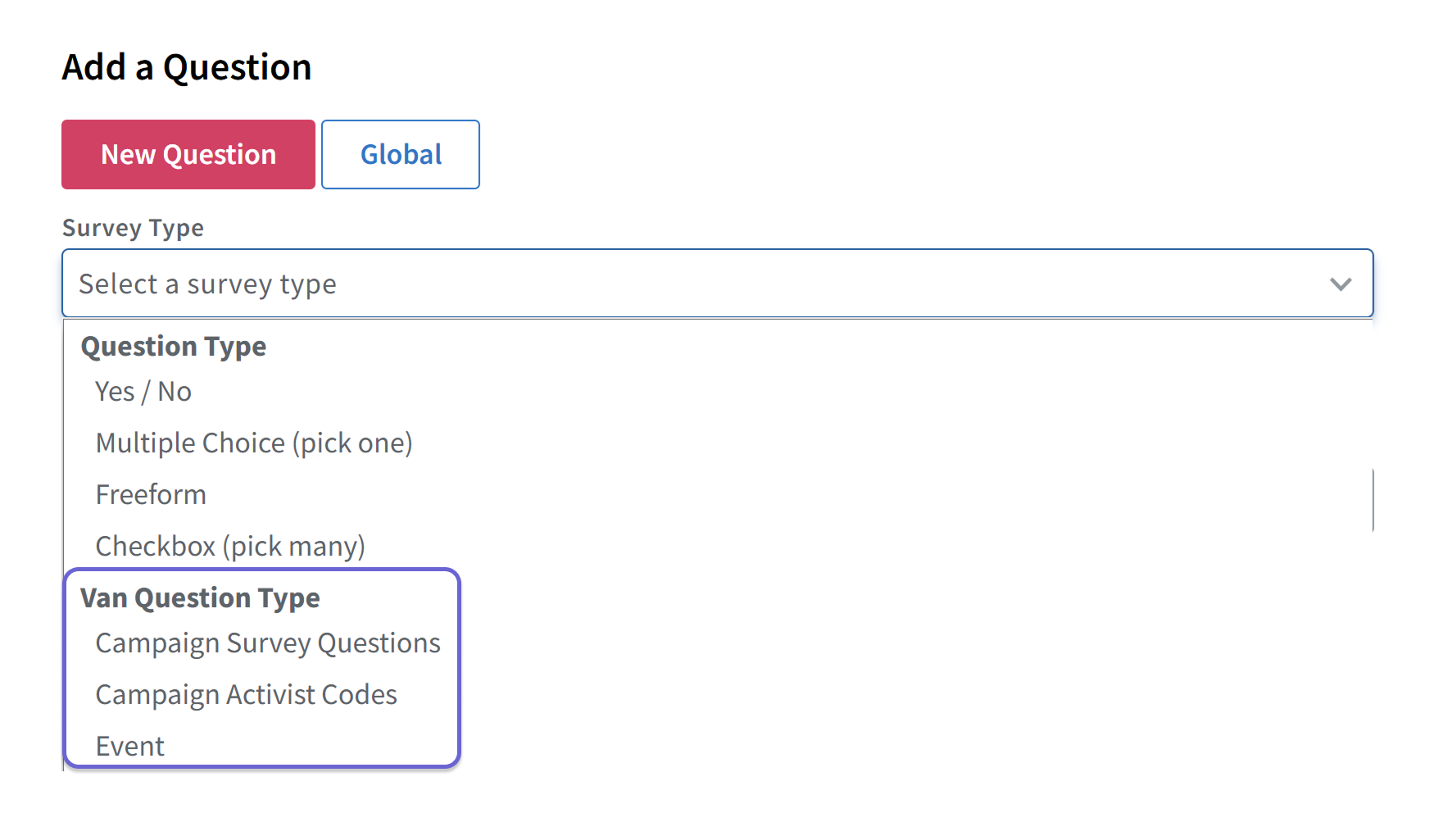
Choose the Survey Type:
For MyVoters, choose from the following: Survey Question, Activist Code, or Canvass Result, or Event).
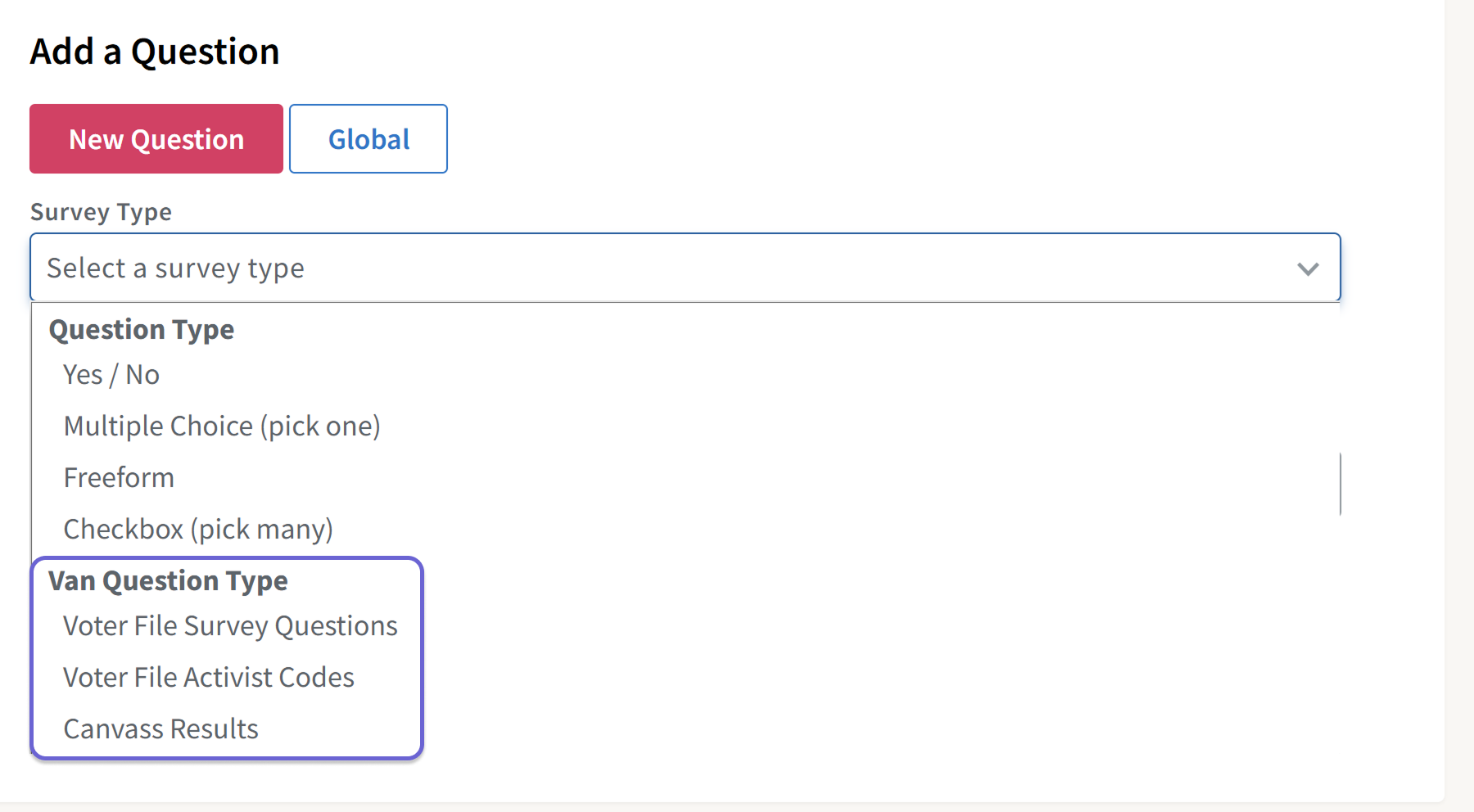
For MyCampaign, choose from the following: Survey Question, Activist Code, or Event).
Use the search bar to find and select the question from your VAN committee.
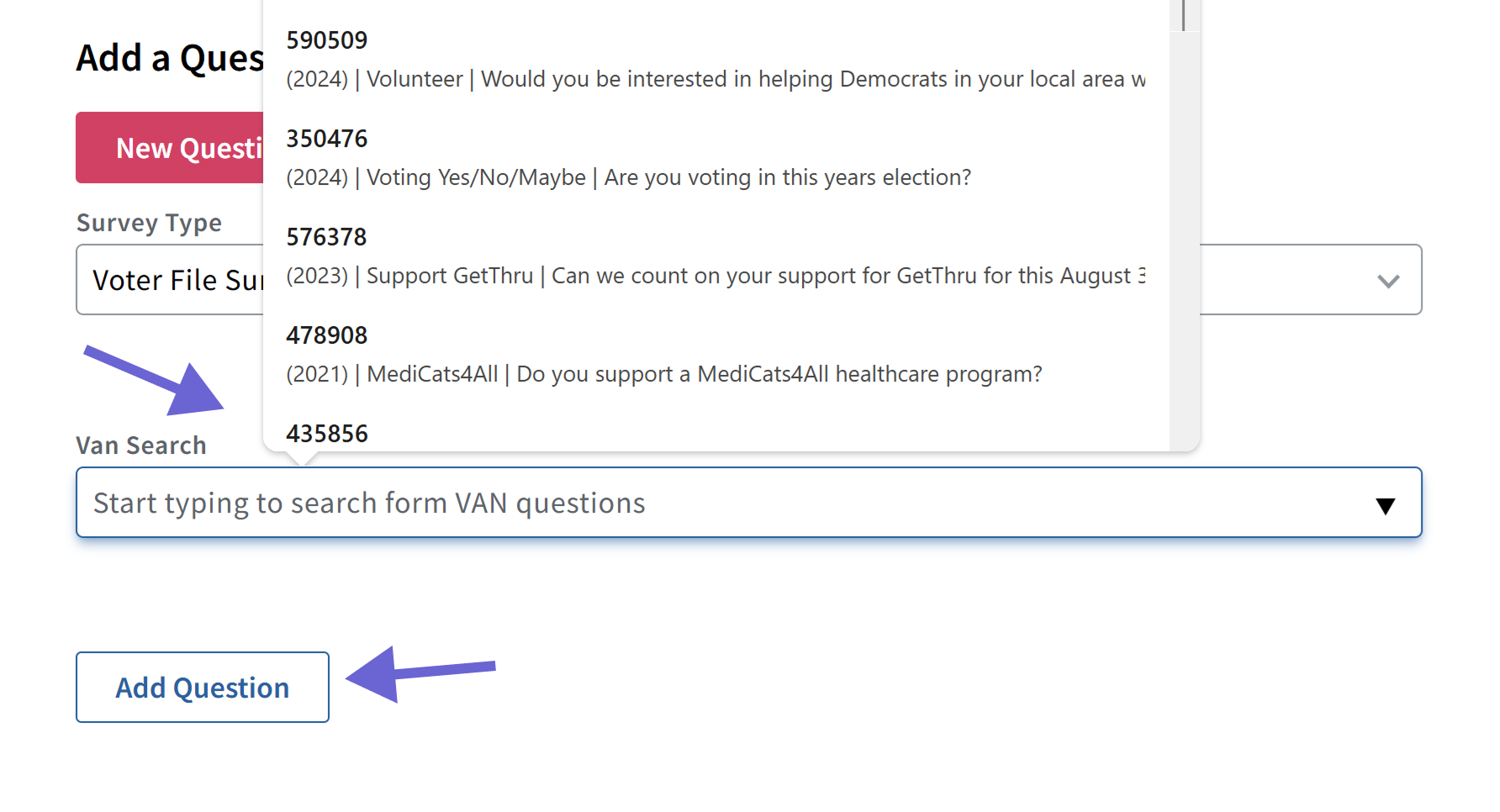
Click Add Question (shown above) to include it in your campaign.
Make sure all groups in your campaign segments are mapped with the appropriate VAN IDs. If one group lacks a VAN ID, the VAN Question Type will not be available and data will not be able to sync.
Collect and Sync Survey Responses
Once your campaign is launched, senders can record survey responses that sync back to VAN automatically:
Survey Questions and Activist Codes from MyVoters sync to the MyVoter file.
- Survey Questions and Activist Codes from MyCampaign sync to the MyCampaign file.
A canvass record is created when data is logged.
Contact History Sync Behavior
Texted result code logs the first time a contact receives a scripted message.
If survey responses are added later the same day, the result code updates to Canvassed.
If a contact opts out during the campaign, Do Not Text is recorded in VAN (if available in your committee).
No additional action is needed to sync data. Simply check your VAN committee to verify the updates.
Using MyVoter Canvass Results in ThruText
Canvass Results can be pulled into ThruText from the MyVoter side of VAN.
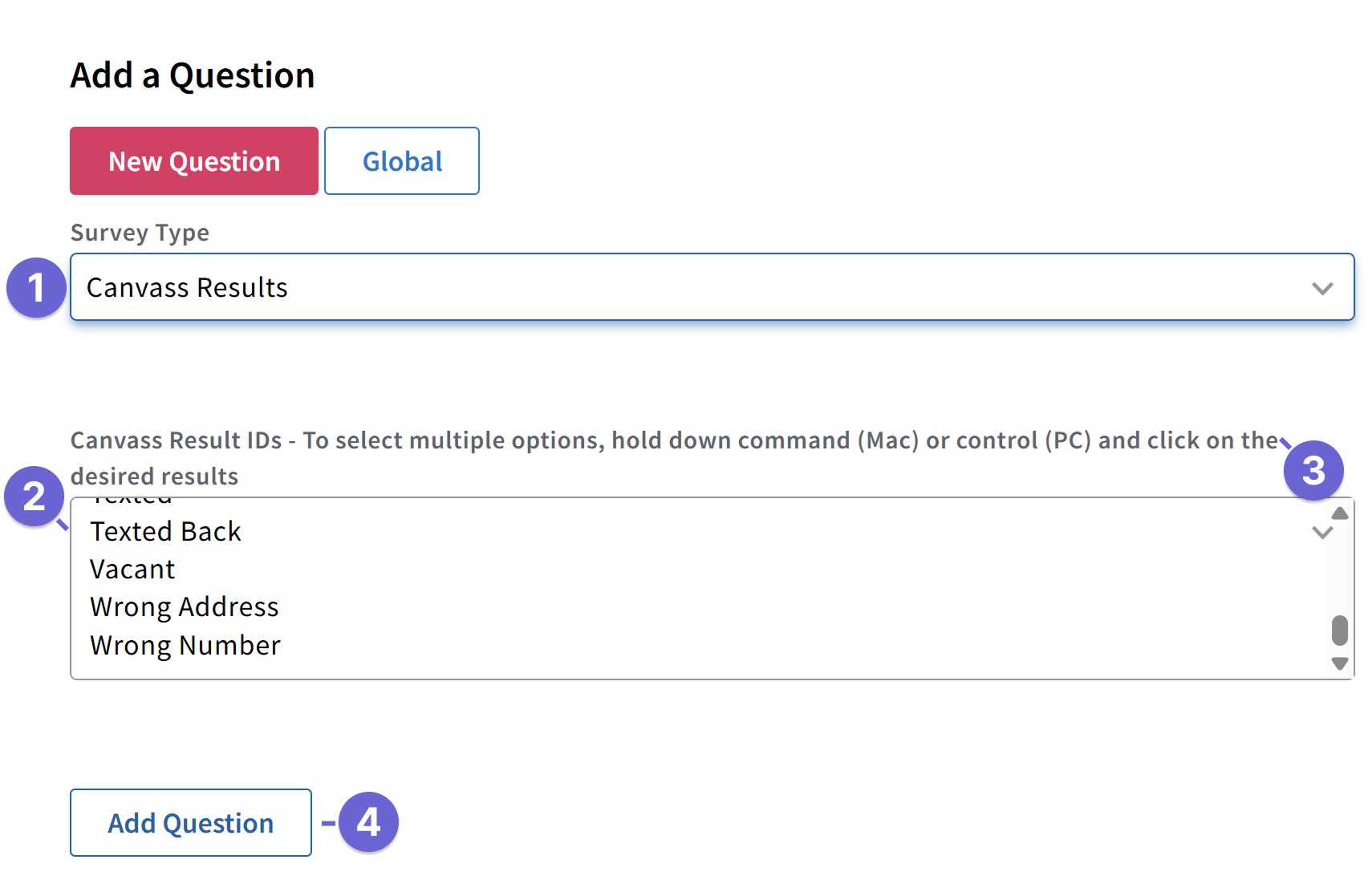
In the Survey Questions step, select Canvass Results from the Survey Type dropdown.
Choose the Canvass Results options you want to track (e.g., Wrong Number, Moved).
Use Command (Mac) or Control (PC) to select multiple results.
Click Add Question and continue building your campaign.
Canvass Sync Notes
Only the last selected result per contact per day will sync to VAN.
ThruText will retain all selection options for data collection purposes.
You can add additional choices after creation if desired.
- Canvass Results are not available for the MyCampaign side, but you can create a custom VAN Survey Question with equivalent options for your MyCampaign committee.
Using MyCampaign Events in ThruText
Event data can be imported into ThruText from the MyCampaign or EveryAction/NGP8 side of VAN only.
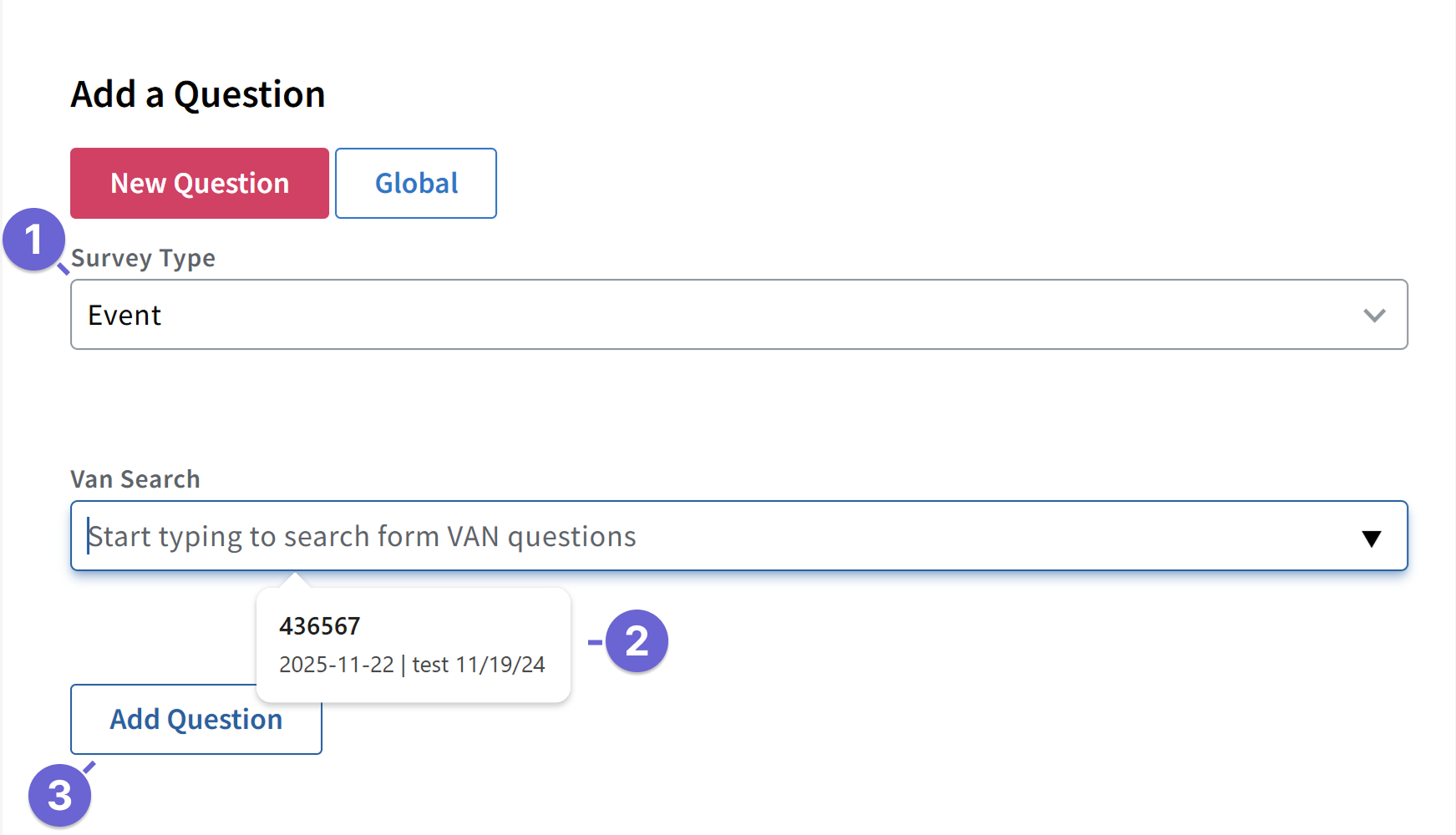
In the Survey Questions step, choose Event from the Survey Type dropdown.
Use the VAN search field to find your event and select it.
Click Add Question to save the question.
- Once saved, keep the default settings or change the role, status, and location.
Sync Role As (e.g., Non-event Leader)
Sync Affirmative Status As (Scheduled, Confirmed, Wait List, etc.)
Events must include at least one role, status, and location to sync back successfully. A location must be documented even if the event is a virtual one. You can configure the role and status by editing the survey question on each campaign and choosing the status and role manually: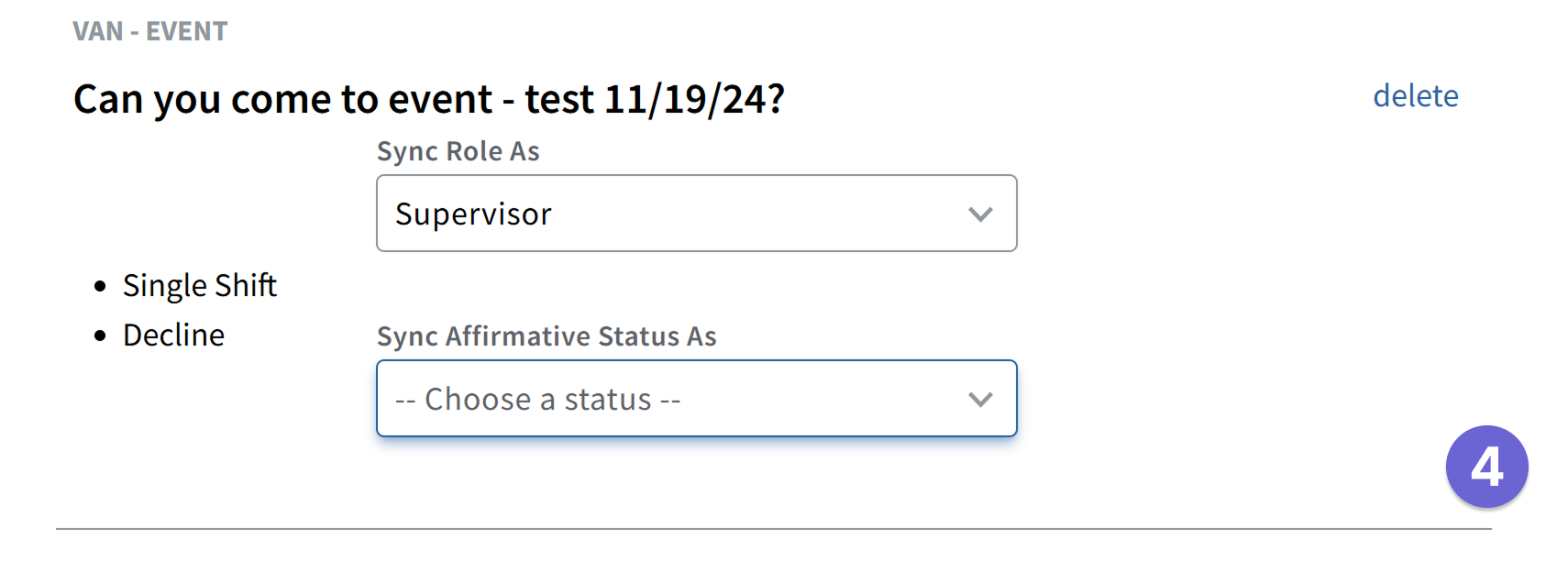
How Event Sync Works
Only Yes responses sync via the API.
Declined must be uploaded manually to VAN if needed.
Synced events appear in VAN in the contact's MyCampaign history.
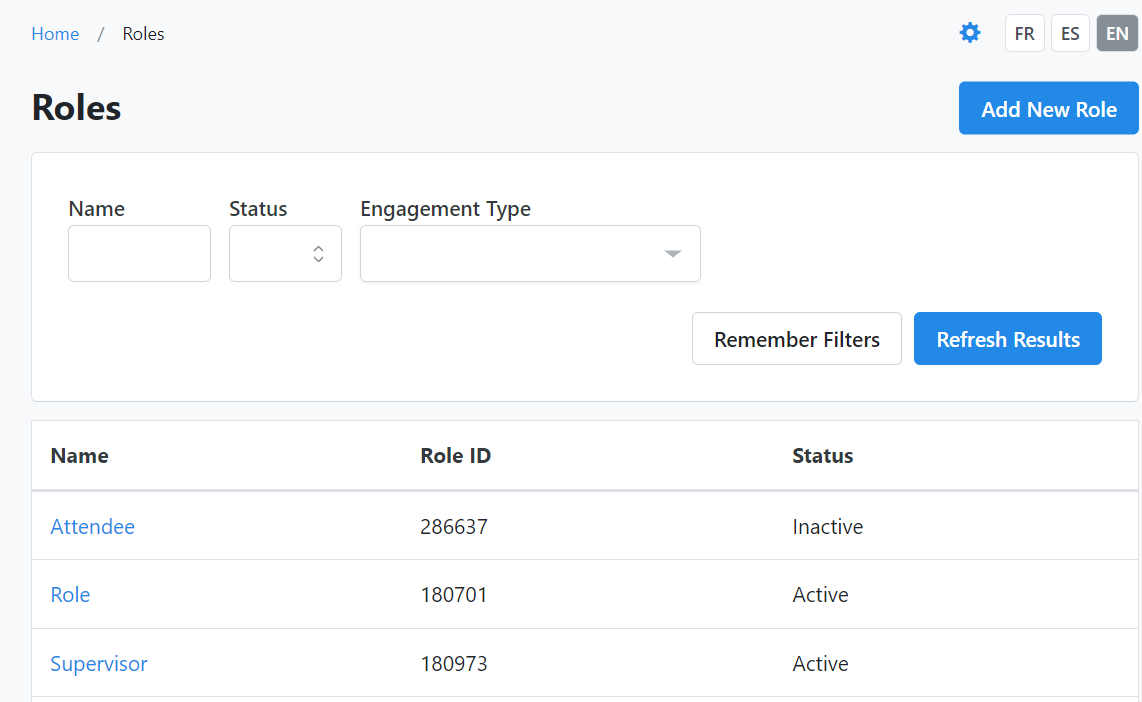
- If no selection is made for Sync Role As, the system will sync back the role with the lowest Role ID numerically in VAN. You can see the Role ID in VAN by going to the Main Menu > Administrative Menu > Events > Event Roles.
Troubleshooting VAN Sync Issues
If survey data does not appear in VAN:
Confirm that group uploads included correct VAN ID mappings.
Ensure all survey questions were imported from VAN.
Use ThruText survey exports to identify sync issues.
For failed syncs, prepare your data in a spreadsheet (e.g. Excel or Google Sheets) and bulk upload it to VAN.
For additional assistance, please reach out to support at support@getthru.io.