
Syncing VAN Texted, Texted Back, and Do Not Text Statuses
Enabling automatic syncing of contact activity with VAN helps ensure your outreach data stays up-to-date without manual effort. This feature allows you to log Texted, Texted Back, and Do Not Text statuses directly in VAN, giving you a clear picture of communication history for each contact. This guide explains how the contact history sync works, what to expect, and how to enable the option in your account.
TABLE OF CONTENTS
Before Getting Started
Make sure to review the following related guides for an in-depth understanding of the ThruText VAN integration process.
Syncing Texted Status to VAN
When enabled, the Texted status is automatically logged in VAN's Contact History each time an initial message is sent from a VAN-integrated ThruText campaign. This helps you track outreach even if contacts do not reply.
This status appears in the Result column of a contact's history in MyVoters or MyCampaign:
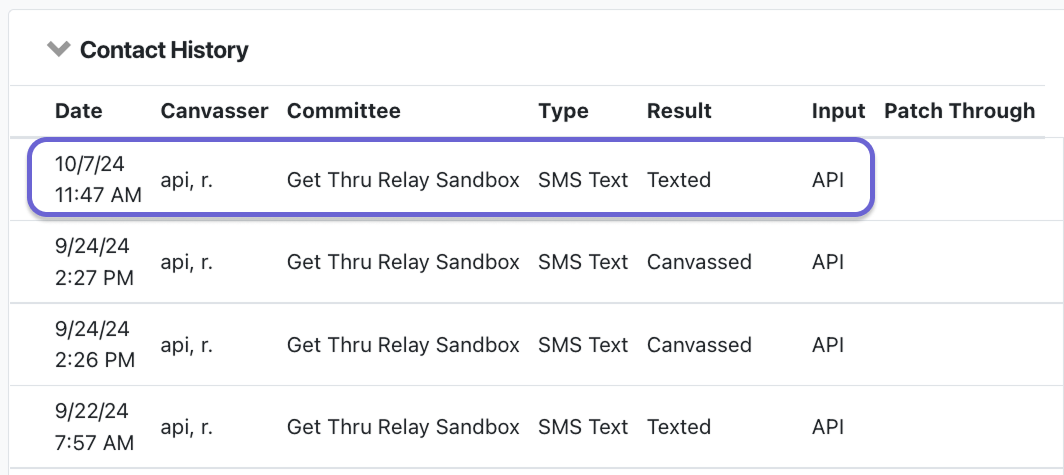
How the Texted Sync Works
The Texted status is recorded under these conditions:
- The message is sent from a ThruText campaign with valid VAN Voter ID or VAN Campaign ID fields.
- Campaign is VAN-integrated with an active API key and correctly mapped groups. Please review our guide Creating a Group from a VAN Imported List for more details.
- The sync happens when the campaign is open. If a message is sent via Admin Conversations while the campaign is closed, the sync will occur once the campaign reopens.
- If a contact receives multiple initial messages in the same day (with the same VAN ID) from campaigns within the same committee, VAN will log the Texted status only once for that day.
- If VAN-integrated survey questions are answered the same day, VAN will update the contact history from Texted to Canvassed with the new timestamp.
Enabling the Texted Feature
To turn on the Texted sync:
Go to the Integration page to enter the API Key
Click Edit for your ThruText API key.
Click the Enable Texted Status checkbox result sync setting.
Once the setting is enabled for either committee side, it will apply to both MyVoters and MyCampaign data.
Syncing Texted Back to VAN
The Texted Back status works similarly to Texted, but is sent for incoming initial replies under these conditions:
- The message is sent from a ThruText campaign with valid VAN Voter ID or VAN Campaign ID fields.
- The ThruText campaign is VAN-integrated with an active API key and correctly mapped groups. Please review our guide Creating a Group from a VAN Imported List for more details.
- The sync happens on a contact's first reply to a conversation. It is not synced for any incoming messages after the initial reply.
- If VAN-integrated survey questions are answered the same day, VAN will update the contact history from Texted Back to Canvassed with the new timestamp.
Enabling the Texted Back Feature
To turn on the Texted Back sync:
Go to the Integration page to enter the API Key
Click Edit for your ThruText API key.
Click the Enable Texted Back Status checkbox result sync setting.
Once the setting is enabled for either committee side, it will apply to both MyVoters and MyCampaign data.
Syncing Do Not Text Responses to VAN
When a contact is opted out during a VAN-integrated campaign, either manually or through Auto Opt Out, ThruText logs a Do Not Text status in VAN's Contact History. This status helps maintain clean lists and avoid future outreach to opted-out contacts. Review our guide, Opt Out Manager - Section: What are Automated Opt Outs?, for more information on this feature.
This status appears in the Result column of a contact's history in MyVoters or MyCampaign:
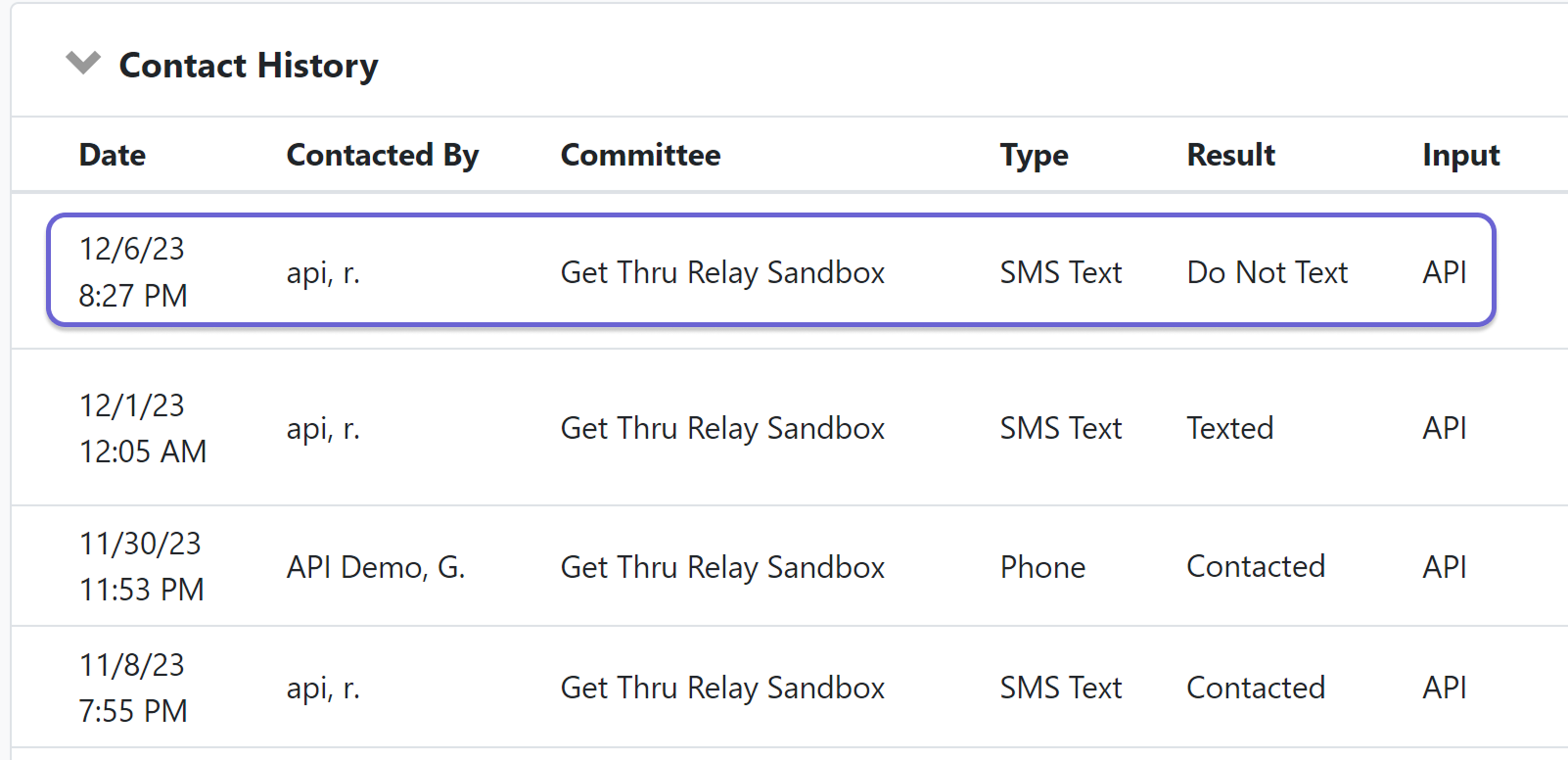
Opt-outs that occur outside of VAN-integrated campaigns will not sync to VAN. This includes opt outs via the admin settings Phone Number Lookup page, Opt Out Manager page, or non VAN-integrations campaigns.
Limitations and Requirements
Consider the following syncing limitations:
- The sync is not retroactive. This feature will not apply to messages sent before it is enabled. If you plan to bulk upload to VAN, to obtain a few weeks or less of contact data, you can do message exports at the account or campaign level. For large amounts of data or large time spans, please submit a historical data request. Review our guides, ThruText Export Types and Requesting Historical Data, for more information.
For Texted Status, your VAN account must include the applicable canvass type Text and the result code Texted. If these are missing within your VAN Committee, contact your VAN administrator.
- For Do Not Text, your VAN account must include the canvass type Do Not Text and the result code Do Not Text. If these are missing within your VAN Committee, contact your VAN administrator.
Troubleshooting and Support
If you're not seeing the Texted or Do Not Text statuses in VAN after data syncing:
Confirm the campaign has valid VAN IDs and is open at the time messages are sent.
Ensure the correct canvass types and result codes exist in VAN.
Double-check that your API key is active and correctly configured via your Account Tools Integrations page.
For additional assistance for syncing data, please reach out to support@getthru.io.